From an empty room to the pictures

How does it work?

Step 1

Scan your room

Walk the room once with an iPhone, or type the sizes. The plan is fitted to the room you actually have.

The room, scanned. Walk it once with an iPhone and the walls land on the plan.
Step 2

Import a sketch of your layout

A published plan, a photo of graph paper, a drawing from a design session. Dream Division reads the track, the sections and the names, fits them to the measured room, and shows you what it was sure of and what it guessed.

Blue Ridge loop and central ridge Back-wall mountain and tunnel Gorge and trestle Corner tunnel and the climb Mill town Yard throat Engine terminal Division yard Blue Ridge Division HO · Southern Ry. · western N.C. · 1952 · room 15 ft × 10 ft · rails at 46 in 1 square = 6 in · dashed = benchwork sections · dotted track = hidden french doors, keep clear door
The kind of drawing a person brings. The Blue Ridge Division, HO scale, in a 15 by 10 foot room. This one was drawn from the plan's own geometry, so every line matches the editor screens below.
Step 3

Dream Division turns your sketch into track

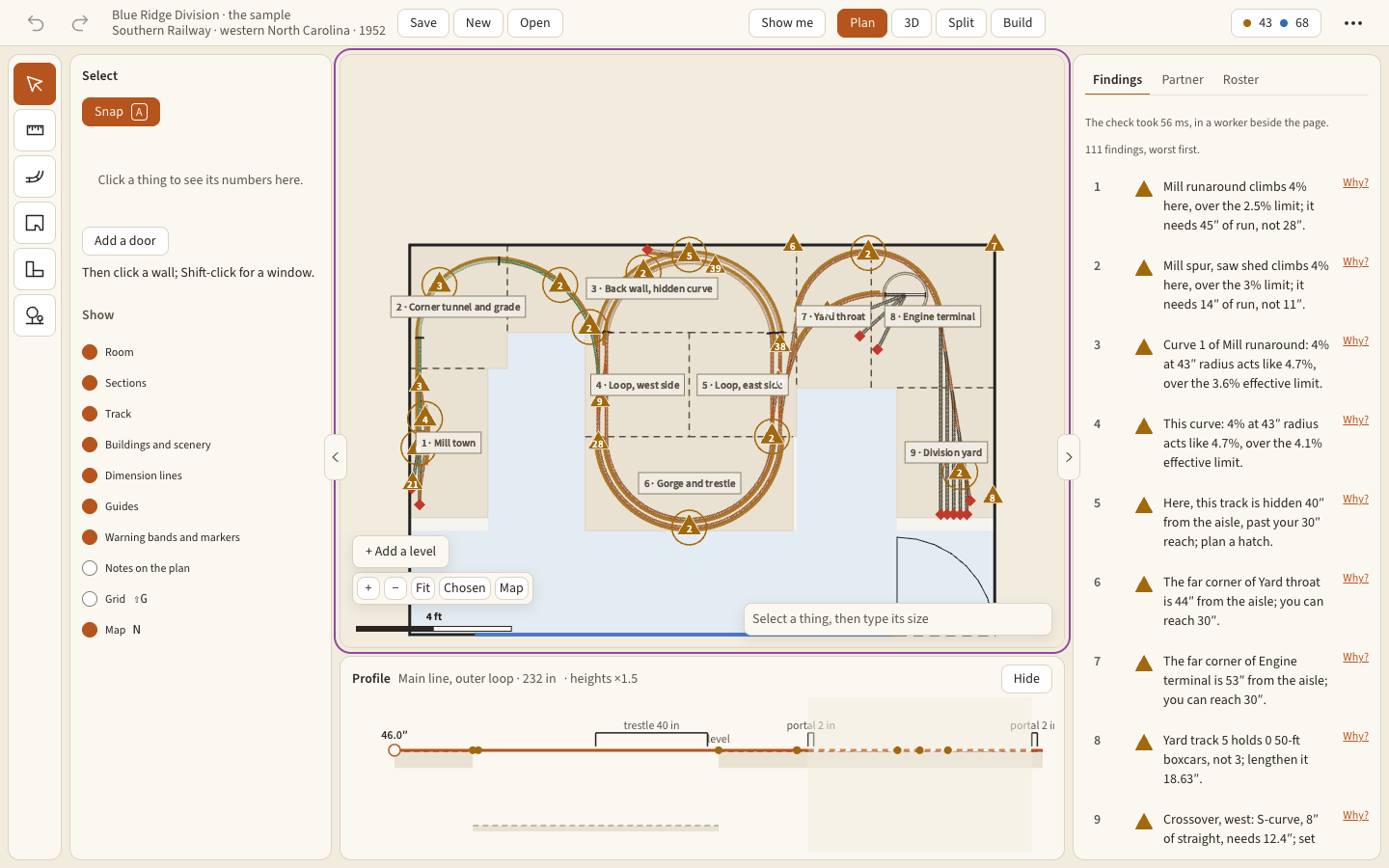
Real parts from the catalog, laid on the plan with the grades and clearances worked out. The checks run as you work and speak in plain words: which curve is too tight, which grade is too steep, what is out of reach from the aisle.
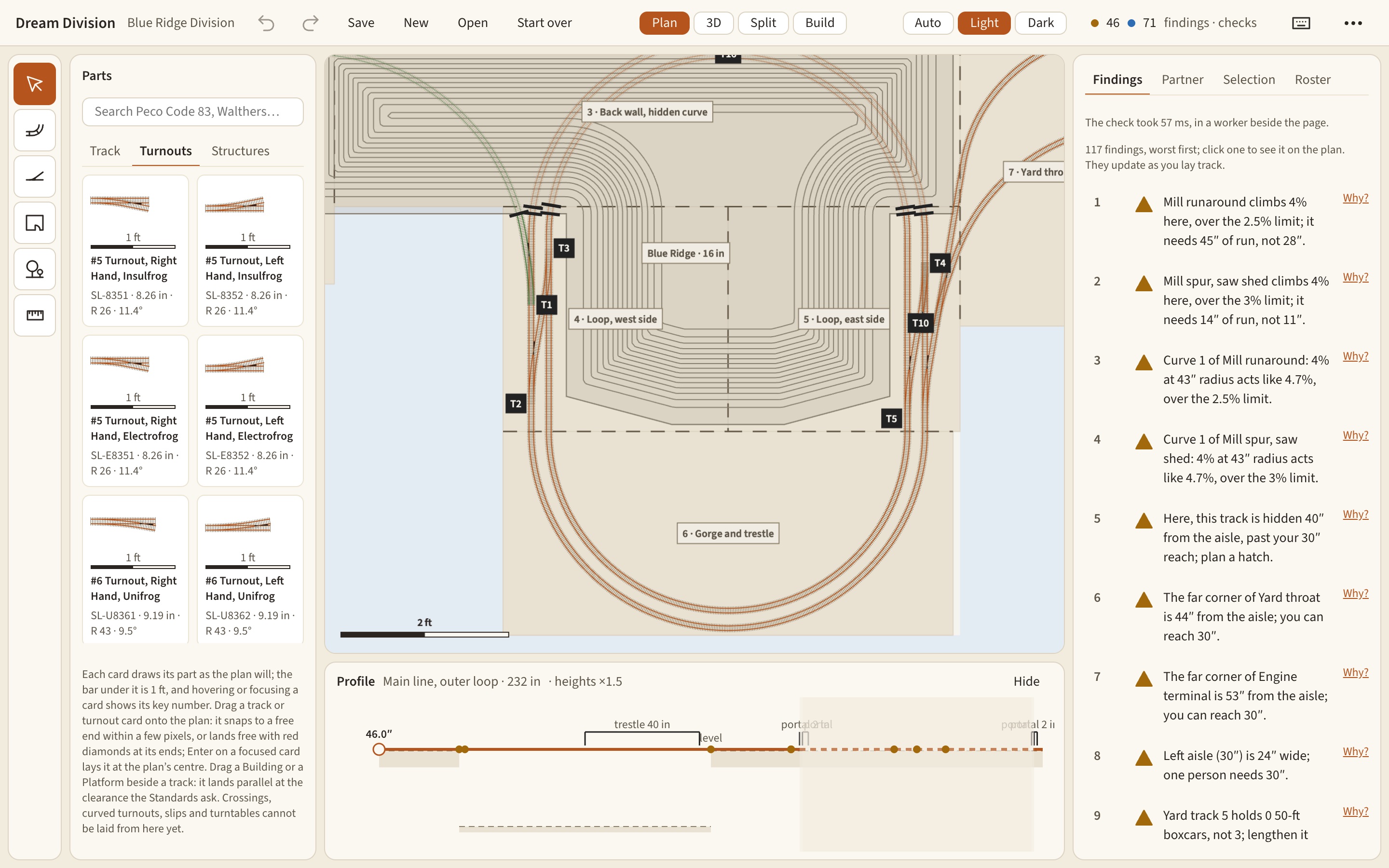
The editor in plan view: the Blue Ridge mountain drawn in contour lines across the back wall and into the loop, both main-line loops entering it through tunnel portals, the parts library on the left and the track profile below
The Blue Ridge Division in the editor. A real screen. The mountain is a 16-inch mass drawn in contours; both main lines pass through it in tunnels, and the editor sets the portals where the track meets the mountain's foot.
The whole Blue Ridge Division fitted in its room, every scene labeled, with the findings list on the right: each one a sentence about a grade, a curve or a reach problem
The whole plan in its room, with the findings. A real screen. Every scene is named on the plan, and the findings read in plain words: "Mill runaround climbs 4% here, over the 2.5% limit; it needs 45 in of run, not 28 in."
Step 4

Describe the things your track layout can't show

Era. Location. Industries. Key scenic elements.

Tell it, in your own words, what the railroad is and when it runs. It says back what it heard and asks one question at a time. It never lays track or moves anything on your plan. The pictures are drawn from what you tell it.
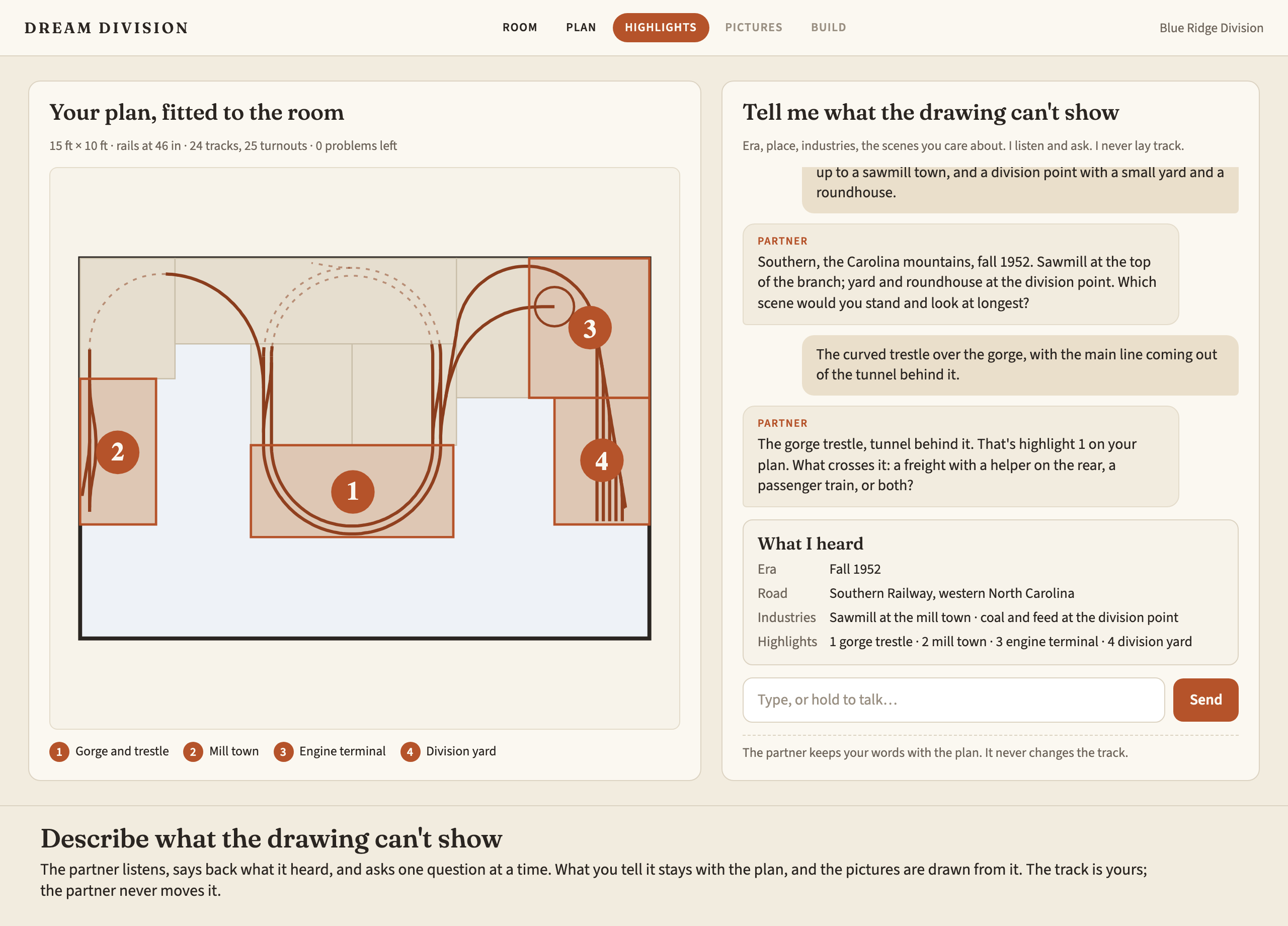
A design preview of the partner screen: the fitted plan with four numbered highlights on the left, and on the right a conversation where the modeler describes Southern Railway in western North Carolina in 1952 and the partner reflects it back and asks a question
The conversation. A design preview of the partner at work on the Blue Ridge Division: era, road, industries and the first highlight, captured in the "What I heard" card.
Step 5

Select key scenes in your layout, and click "Render"

Pin the scenes you want to see. Each picture is drawn from the plan and from what you said, so it shows your railroad, not a stock one.
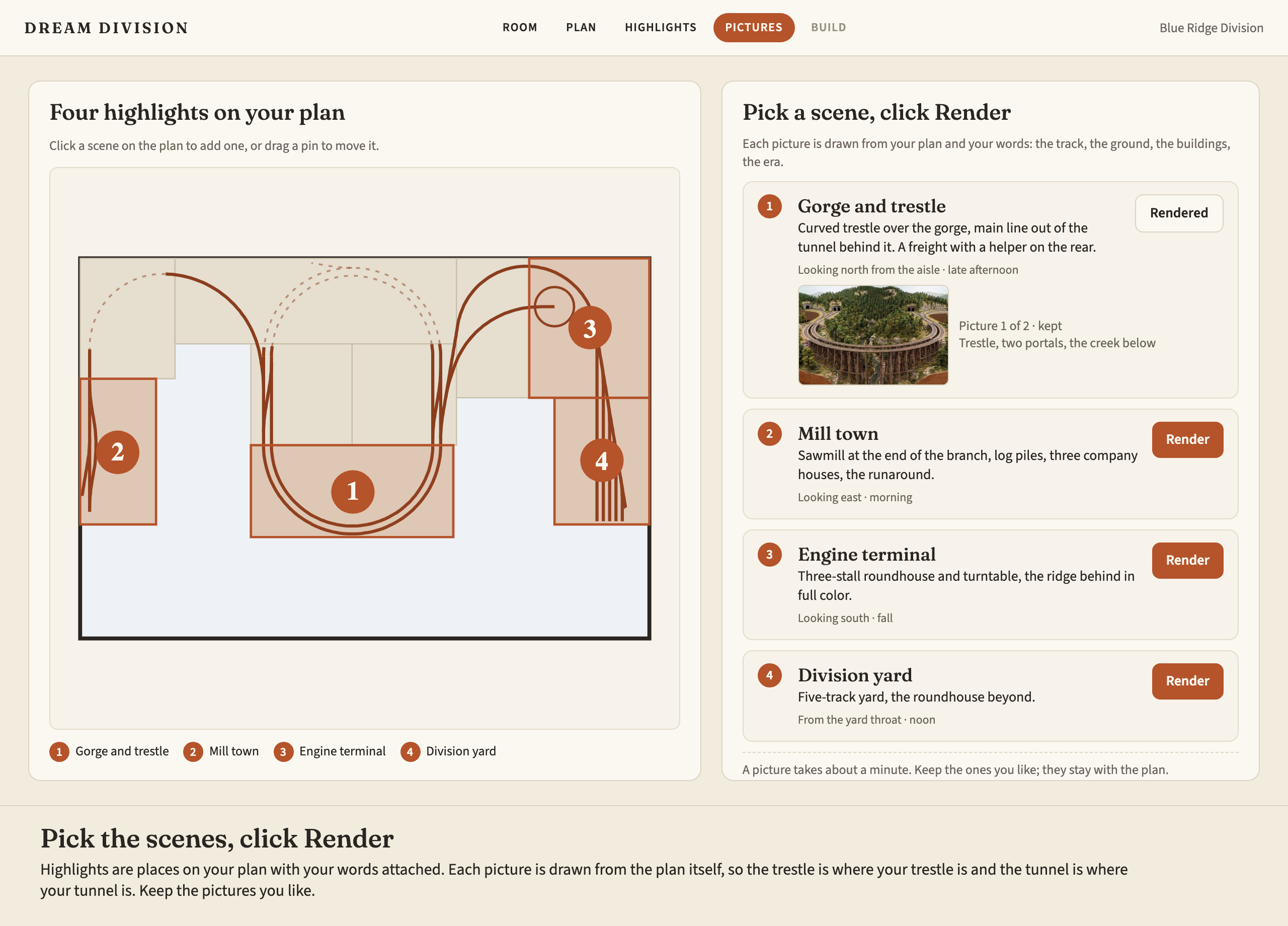
A design preview of the highlights screen: four pinned scenes on the plan and a list on the right with a Render button for each, the first one already rendered with a thumbnail
The highlights. A design preview. Four pins on the plan, a Render button for each, the first picture kept.