Step 1
Scan your room
Walk the room once with an iPhone, or type the sizes. The plan is fitted to the room you actually have.
Picture to comeA LiDAR capture of a room at the office.
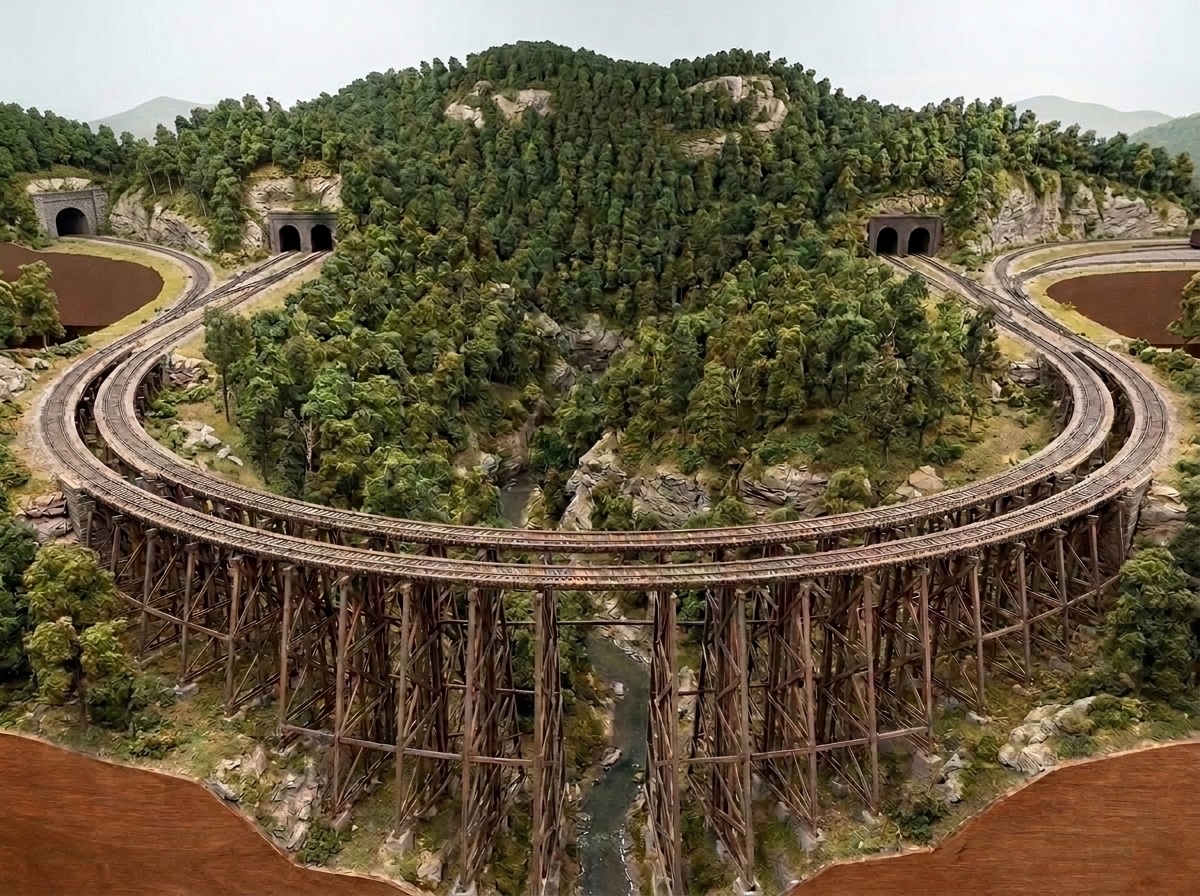
The gorge trestle on the Blue Ridge Division. Rendered by Dream Division from a user's track layout and description.
A preview for founding members · First release January 2027
See your finished layout before you build it. Dream Division draws realistic pictures of your railroad from your own track plan: tell it the era, the road and the industries, pick the scenes, click Render. This is not your typical layout tool.
Four scenes from the Blue Ridge Division, a user-created HO layout in a 15 by 10 foot room. Each one was rendered from the user's own track layout and their description of the railroad: its era, its industries, its scenery.
The curved trestle over the gorge, the main line coming out of the tunnel behind it.
Rendered from the user's Blue Ridge Division plan.
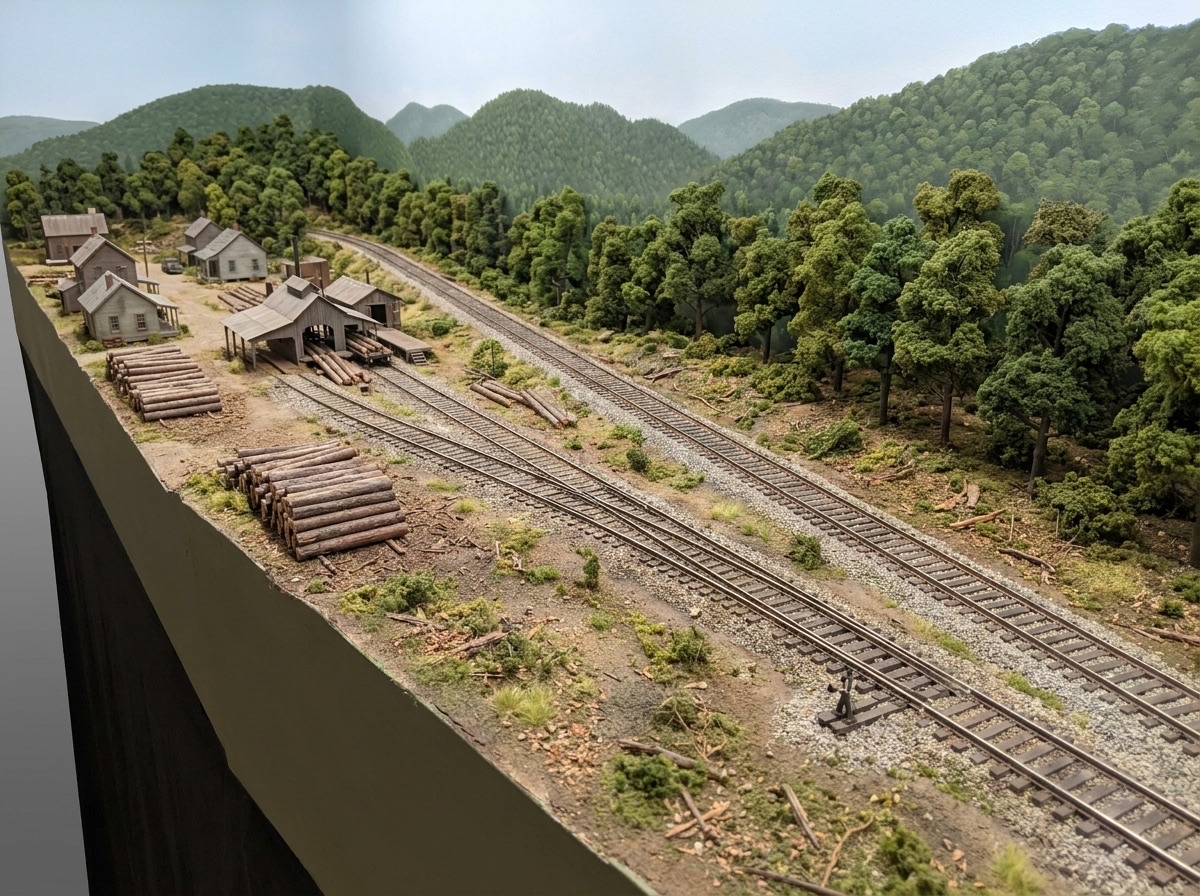
The sawmill at the end of the branch, log piles by the spur, company houses up the hill.
Rendered from the user's Blue Ridge Division plan.
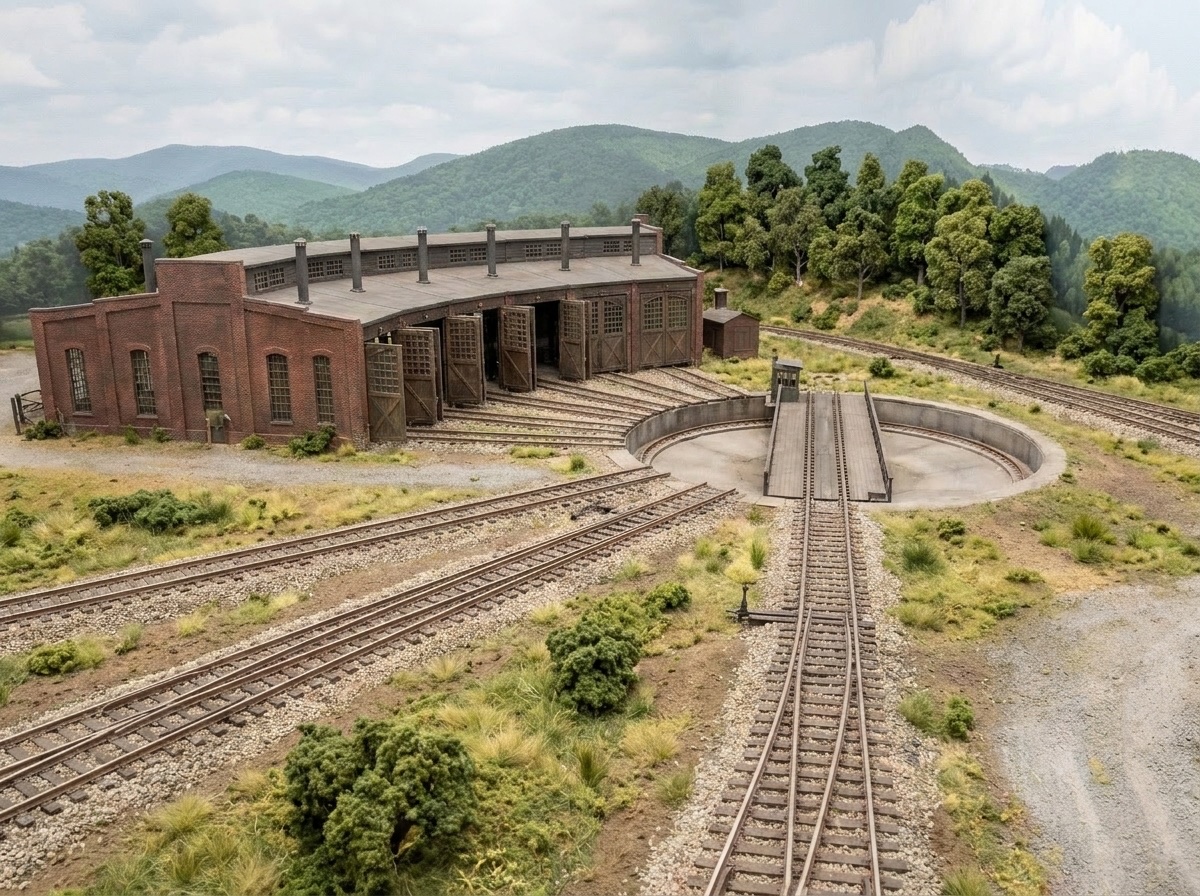
The turntable and its bridge, the stall tracks running into the roundhouse, the lead track coming up from the yard.
Rendered from the user's Blue Ridge Division plan.
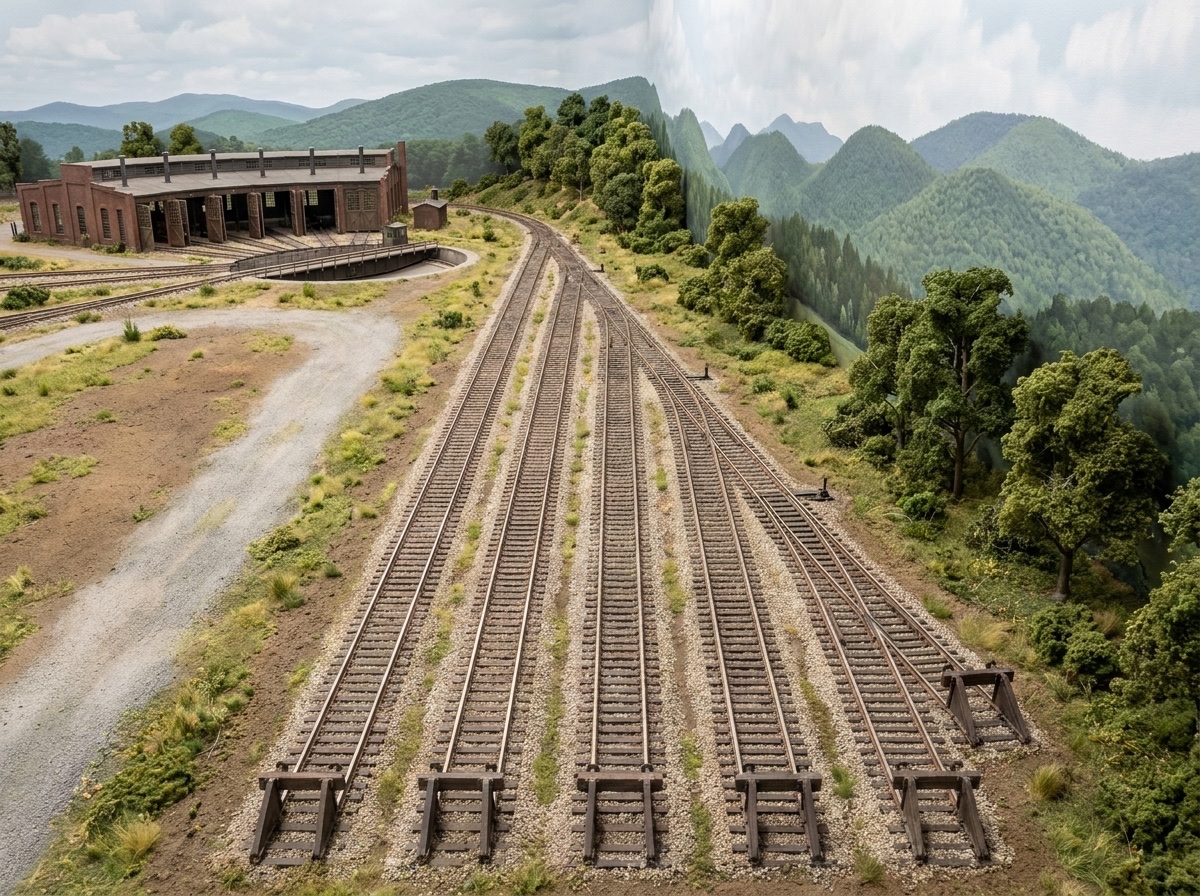
Five yard tracks in the foreground, the turntable and roundhouse beyond.
Rendered from the user's Blue Ridge Division plan.
From an empty room to the pictures
How does it work?
Walk the room once with an iPhone, or type the sizes. The plan is fitted to the room you actually have.
A published plan, a photo of graph paper, a drawing from a design session. Dream Division reads the track, the sections and the names, fits them to the measured room, and shows you what it was sure of and what it guessed.
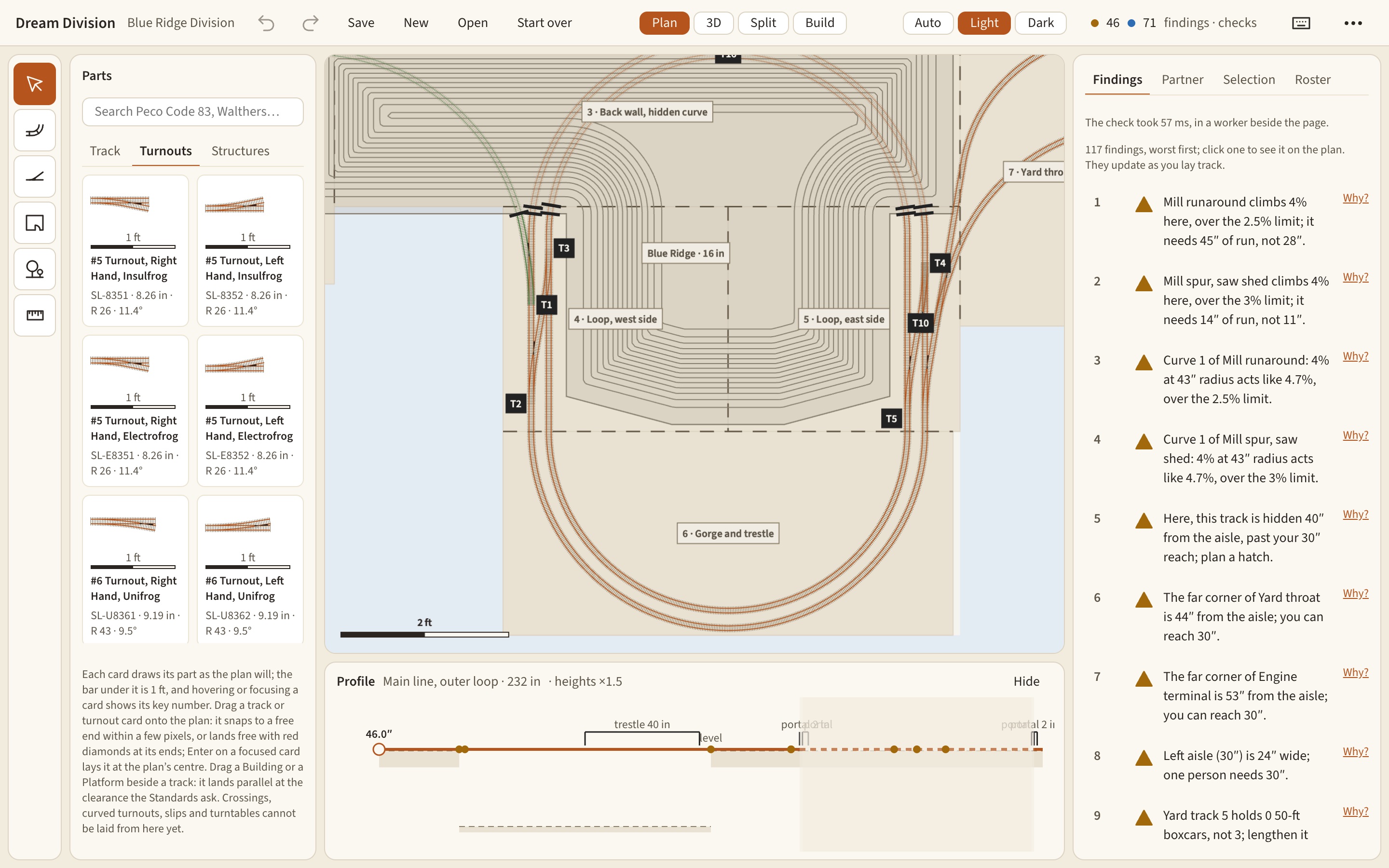
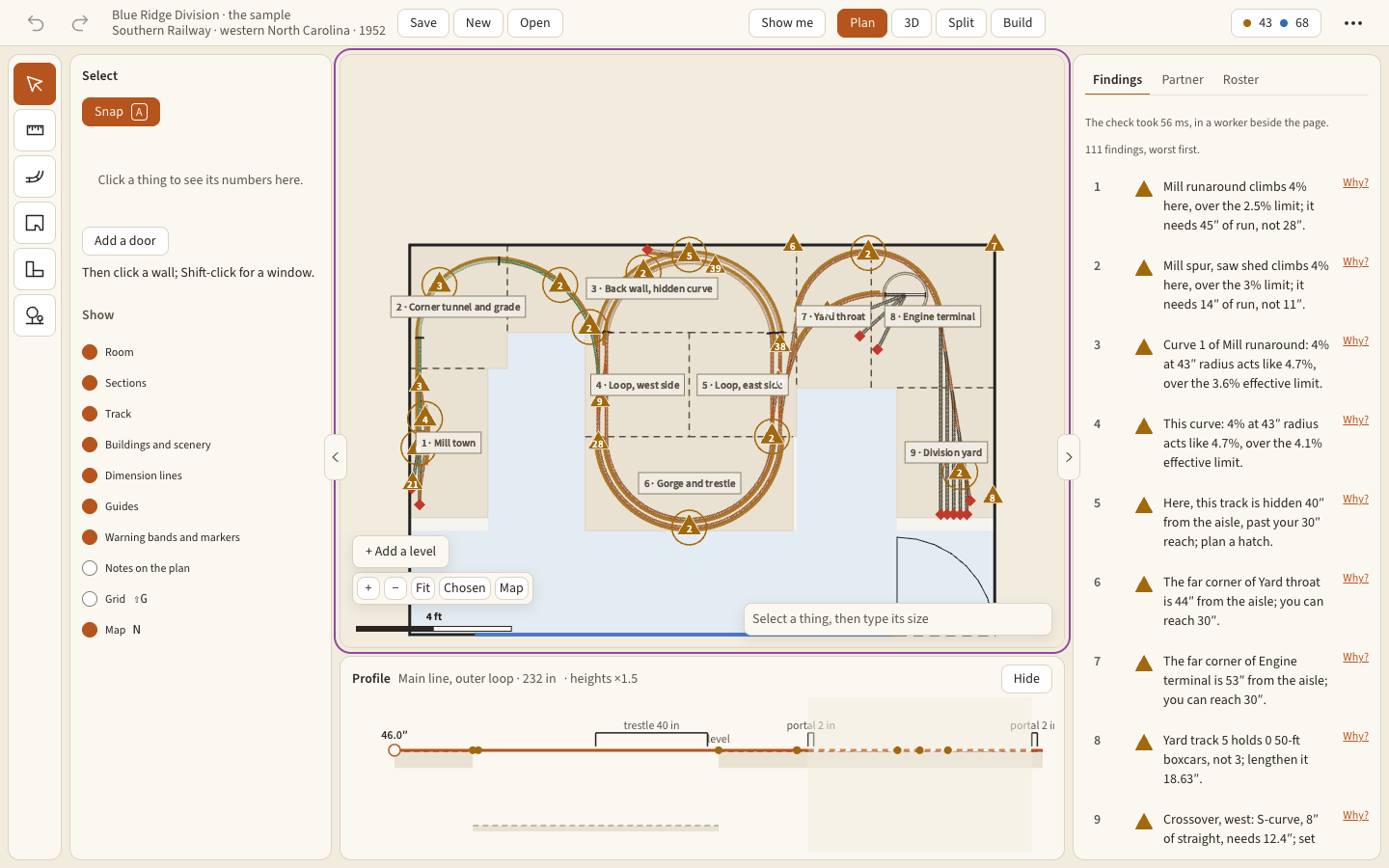
Real parts from the catalog, laid on the plan with the grades and clearances worked out. The checks run as you work and speak in plain words: which curve is too tight, which grade is too steep, what is out of reach from the aisle.
Era. Location. Industries. Key scenic elements.
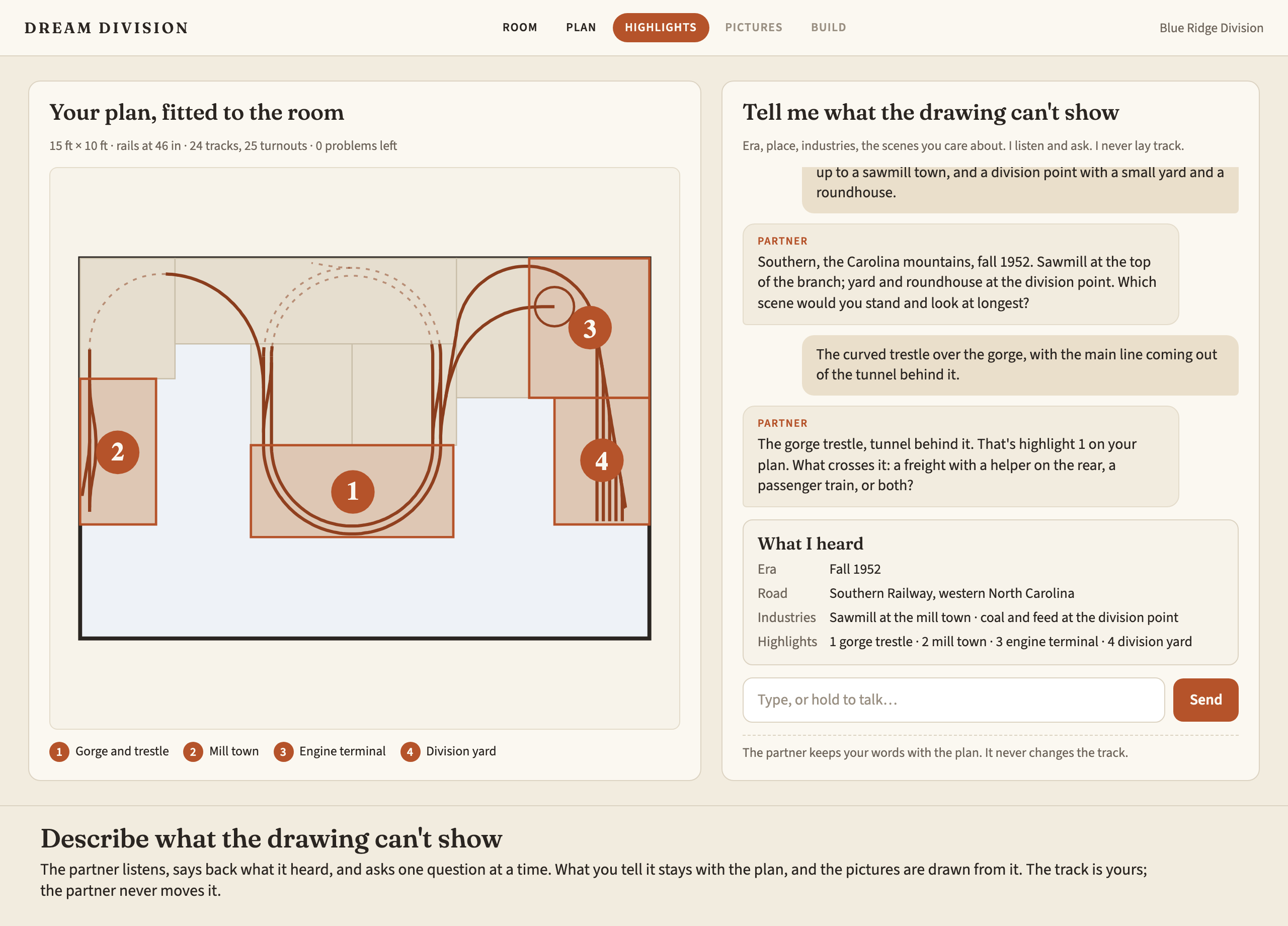
Tell it, in your own words, what the railroad is and when it runs. It says back what it heard and asks one question at a time. It never lays track or moves anything on your plan. The pictures are drawn from what you tell it.
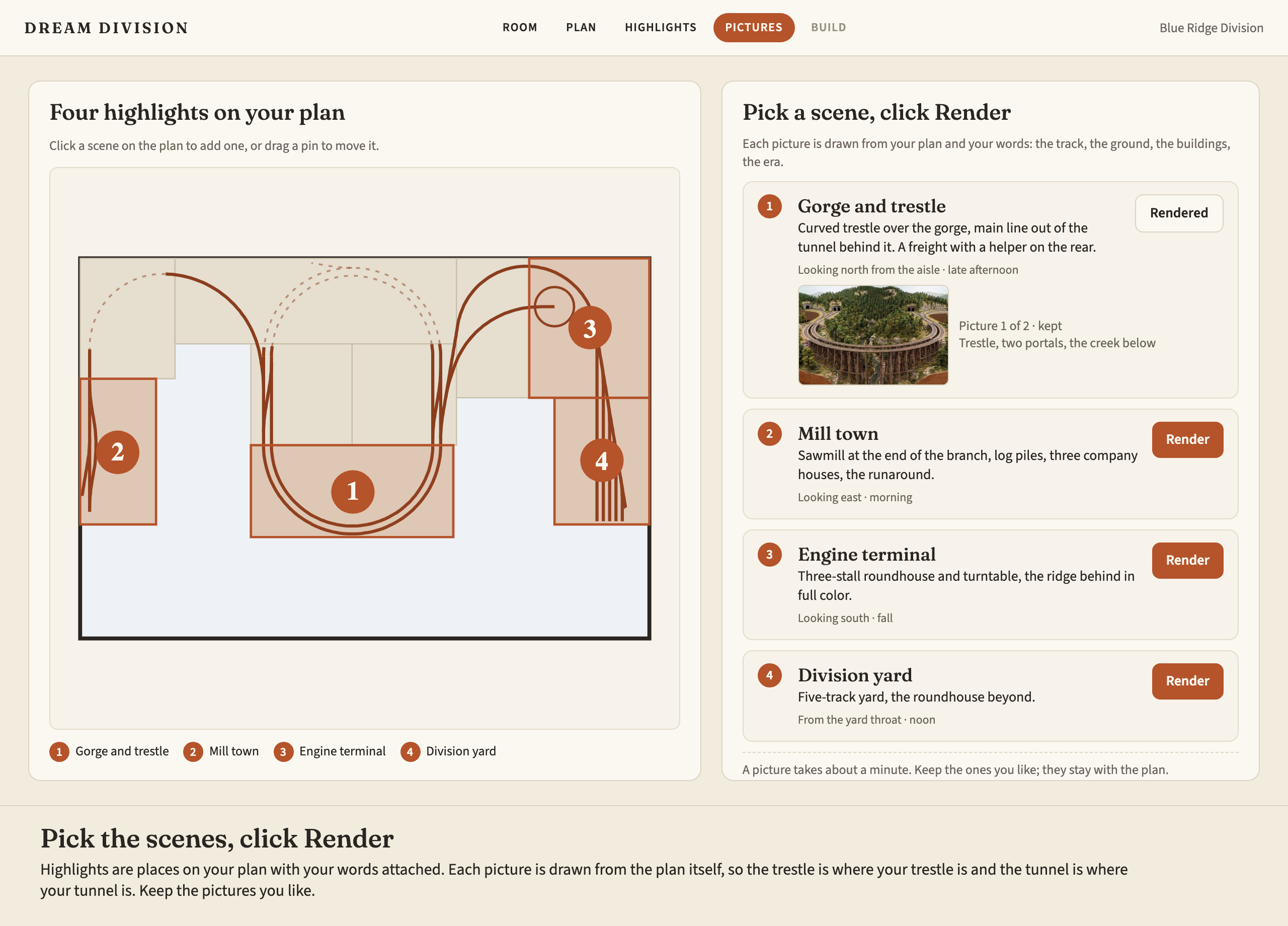
Pin the scenes you want to see. Each picture is drawn from the plan and from what you said, so it shows your railroad, not a stock one.
And more
Sections, legs and risers drawn from the plan, with a cut list and shop drawings you can take to the lumber yard.
What the railroad costs in track, turnouts, lumber and structures, and which part to build first so trains run early.
Curves, grades and clearances checked against the engines and cars you actually own, before you build.
Founding members
The first release arrives in January 2027. Founding members are in from the first day, and get every feature as it lands through the year.
Dream Division runs in the browser, so it works on a Mac, a PC or an iPad with nothing to install.
Write for a demo, or to talk about the January launch.